To add a note to your editorial calendar, it’s very simple. Access the calendar view in your Dailyspace, then select the date where you want to add a note (for example, October 20th).
Hover your mouse over the orange “Notes” block and click “Add a note”.

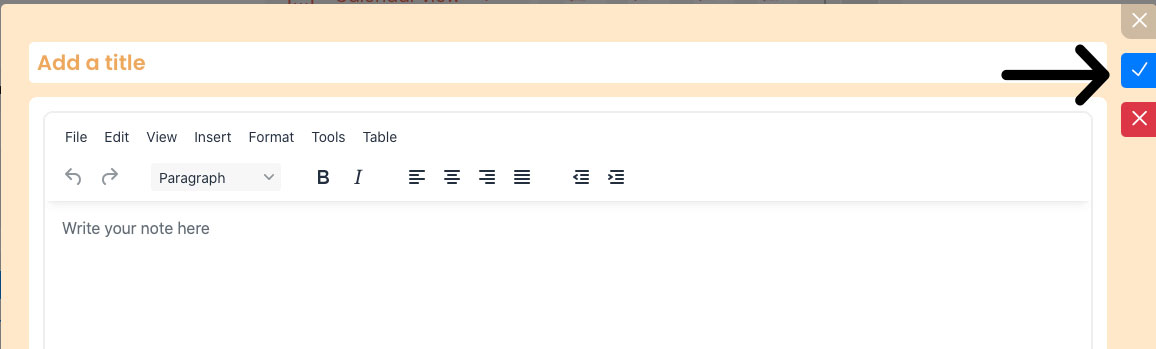
Then add a title to your note and a description.
If you set a specific date, your note will appear in the calendar on the scheduled day.

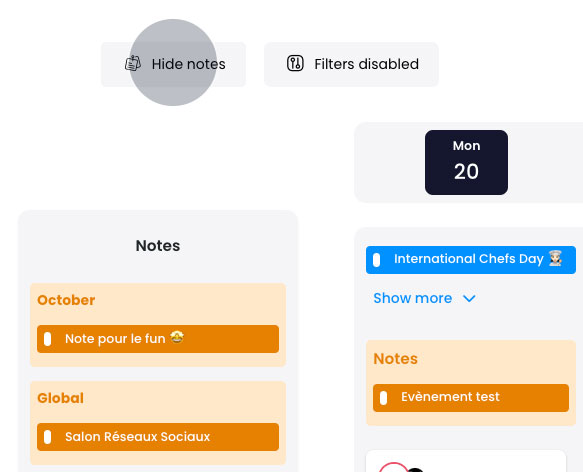
If you don’t specify a date or only add a month or year, click “Show notes” (top left of the calendar) to access your list of undated notes (remove date at the bottom of the note, leave field empty).
Once your note is ready, click the blue button with a checkmark in the top right corner of the window.