
You can schedule posts on a Pinterest profile via Dailyfy only if you have a board.
To do this, simply follow these steps:
- Access your DailySpace
- Click on configuration (bottom left in the menu)
- Click on Social Network and then on Account Management
- Select Pinterest logo
- Click on “Add Pinterest Profiles”
- You will then be redirected to Pinterest. Make sure you’re logged in with the right Pinterest profile.
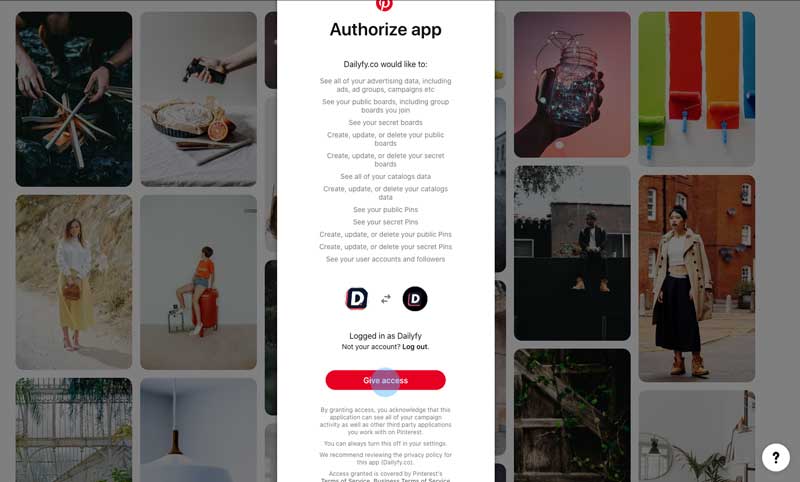
- Accept all permissions
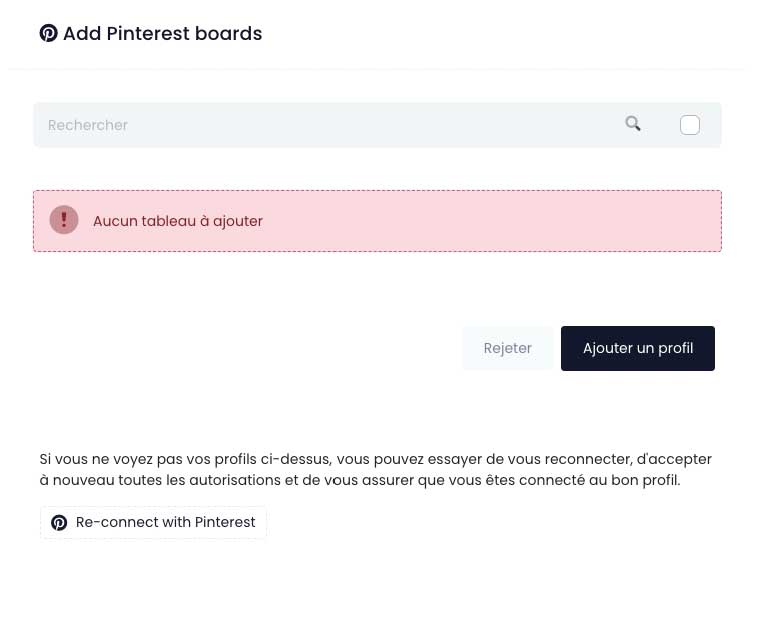
- Select your table(s) to associate. Be careful, if you have not created a board beforehand, then you will not be able to publish Pins on Pinterest.
- Once the board(s) are successfully connected, they will appear under Account Management.