
From now on, you can moderate the reviews on your Google listing directly from Dailyfy.
With this feature, you’ll be able to easily manage and respond to your business’s various Google reviews.
Combined with our AI, you will benefit from a great assistant in your management.
Google reviews are super important for your reputation and local SEO (SEO).
How do I connect Google reviews?
Syncing your Google reviews is very simple. If you haven’t already connected your Google account to Dailyfy to schedule posts, then we invite you to follow this guide.
How to access Google reviews on Dailyfy?
You can access Google reviews from our moderation view in the left menu (letter icon).
Then, simply select your Google account in the profile bar or from our filter by choosing the network: Google Business.
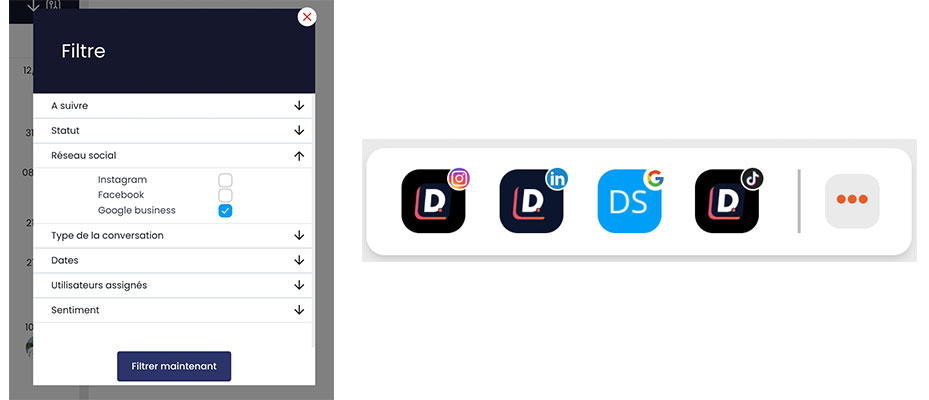
If after connecting your account to Dailyfy, you have reviews that are still waiting for answers, then we will sync them to the left section.
New notices will also be displayed here.
Sentiment analysis will be effective only for reviews left after syncing with Dailyfy. We won't show sentiment for reviews prior to syncing.
Filter Google reviews
You can also filter Google reviews from Dailyfy: between two specific dates, related to a sentiment or between two ratings to display only 3-star reviews for example.
Respond to Google My Business reviews
You can simply reply to your Google reviews by selecting a review from the list on the left.
You have the option to translate the review into your language by clicking on the translate icon to the right of the review date.
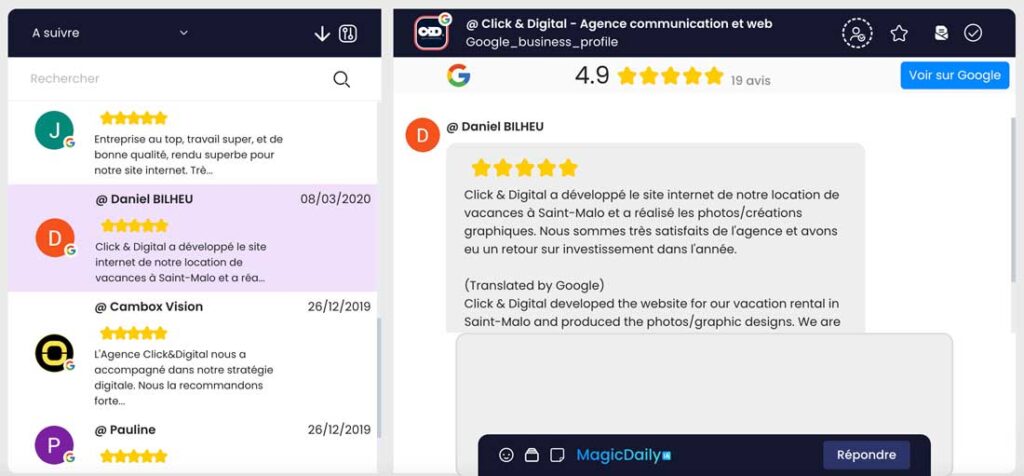
Then, you just have to answer in the text editor on the right.
There are several ways to respond to this review:
- Using a predefined message
- By manually writing a response to this review
- Using our MagicDaily AI to generate an appropriate response
When your answer is ready, just click on the “Reply” button.
When you reply to a review, Google automatically sends an email to the user to let them know you’ve responded.
You cannot add media (image, audio or video) to your answer. Only text.
How do I add an internal note to a Google review?
With Dailyfy, you can add an internal note to a review so that you can exchange with a colleague before sending a reply. A very handy feature on negative or mixed reviews.
To leave an internal note, all you have to do is:
- Select Review
- Click on the internal note icon in the text editor (normally the editor turns yellow)
- Write your internal memo. You can also mention one or more colleagues using the “@”
- Click on the “Internal Note” button
Your internal note will be displayed in yellow in the message feed. We also invite you to invite a colleague to this conversation (see chapter below).

How do I assign a member of my team to a Google review?
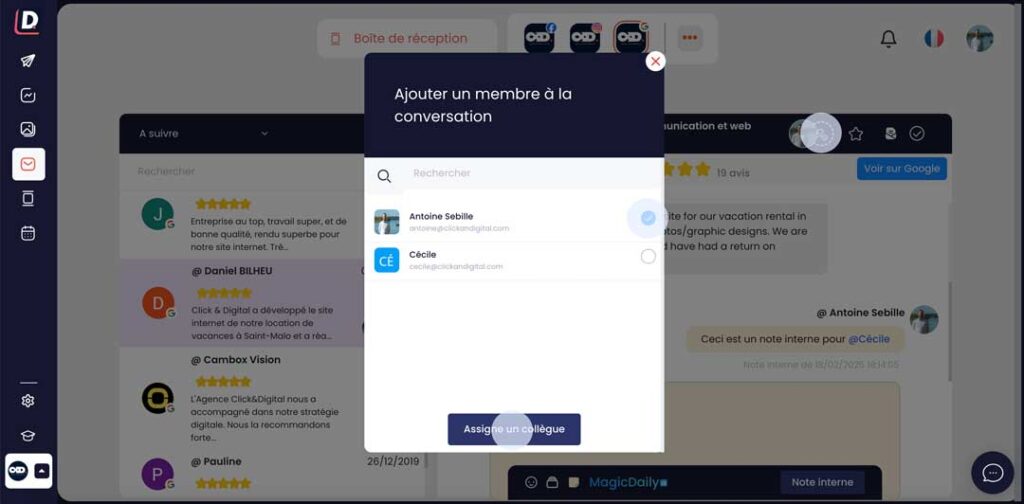
In order to facilitate team collaboration on review management, you have the option to assign a colleague/member of your DailySpace on a review or conversation.
This solution is very practical for following up as a team on more complex subjects that deserve reflection.
To assign a member to a review, simply:
- Select Review
- Click on the next icon (assignment)
- Select the member(s) you want to assign
- Click on the “Assign a colleague” button
Assigned members will automatically receive a notification in Dailyfy to inform them.
Can I automate the management of my Google reviews?
With our MagicDaily tool, you can let our artificial intelligence automatically respond to your positive reviews.
We analyze the perception of reviews with MagicDaily. If we deem the review to be considered positive (beyond ratings, even if there is a correlation), our AI will automatically write an appropriate response to the user.
To enable auto-reply for positive reviews, you need to:
- Go to the configuration of your DailySpace
- Click on “Moderation”
- Turn on auto-reply for Google reviews
Responding to positive reviews on Google will directly impact your local visibility.
For neutral or negative reviews, we will leave it to you to answer them because it deserves reflection. However, you can use our AI to write an appropriate response in 2-3 clicks.

Deleting Google Reviews
Delete a review reply
To delete a reply to a review. All you have to do is select the review and then click on the small trash can to the left of the review.
Delete a user's review
Unfortunately, you can’t delete a Google user’s review, but you can make a complaint to Google via this form.
If the reviews come from third-party sources, then you will have to request removal directly on the relevant platform.
How do I edit a response to a Google review?
To edit a review reply, simply delete your reply, then write a new 😉 one