Introduction
Our moderation tool is very useful for moderating conversations on social networks easily. In order to facilitate the management of conversations with others, we have developed new features to work with your colleagues such as the assignment of a conversation or the internal note.
An advanced processing process
To track the status of each comment or DM, you can rely on our status system allowing you to properly filter and track the management of replies to your customers or your community in general.
In Dailyfy, we have simplified this to 3 statuses:
- Unread
- Unsolved
- Resolute
The assignment feature
Why use the assignment feature?
You are not competent internally to respond to this request? You can assign a colleague to this conversation so that they can be notified to respond to it as soon as possible. You can assign as many colleagues as you want. This allows you to outsource or collaborate with your team on the management of incoming messages.
How do I assign a colleague to a moderation?
Assigning a member of your team is very simple. To start, you need to make sure that the person you want to assign has the rights for moderation.
Then, all you have to do is go to the Engagement tool (mail icon) and click on the conversation in question.
In the conversation header, you’ll find an icon of a person with a + surrounded by a circle.

Then you have to look for your colleague from the list.
You select it and click on the “Assign” button.
Normally, you should see your colleague to the left of the icon and to the right of the message in the list.
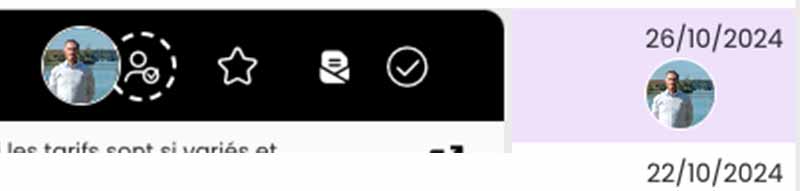
Then, your colleague will receive an internal notification inviting them to read about this collaboration for this moderation. He will then be able to exchange with you directly from Dailyfy by adding an internal note.
The internal note feature
Why use an internal note for moderation?
Maybe you are not competent to answer this question, or your colleague has already exchanged with this customer? In addition to assigning it (see above), you can exchange with your team on a conversation thanks to our internal note feature. Ideal for exchanging comments in order to have a better follow-up or simply to respond as quickly as possible, without being off the mark, to your customer. If you’re on your own, you can use the internal note to put remarks about this customer/fan.
How do I use the internal note for moderation?
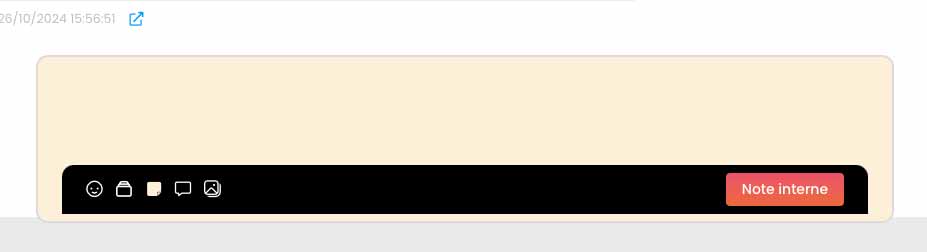
To use the internal note, it’s very simple. When you are on a conversation in our moderation tool, you just have to click on the “post-it” icon, the field will then change to yellow to indicate that the message will not be sent to the customer but only visible to you or your colleagues.
How do I mention a colleague in an internal note?
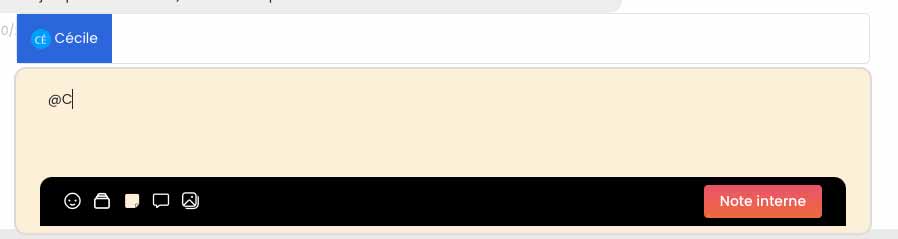
To mention a colleague, you just have to add an @ and then the first name of your colleague. A colleague proposal will appear next to the @, you just have to select the right person.
Once the internal note sends your mentioned colleague, will receive a notification in his Dailyfy notification center.
How do I respond to an internal note mention?
If you received a mention in an internal note then you will receive a notification in your notification center (small bell at the top right of the screen). By clicking on the notification, you will then be redirected to the message or comment in question. To reply, simply click on the post-it icon and then mention your colleague and send the internal note.
Track your colleagues' mentions
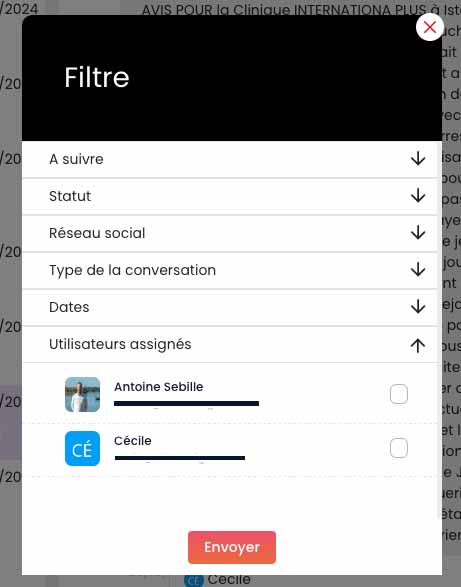
To track your team’s assignments in the moderation tool, simply click on the conversation filter (icon to the right of the arrow).
Then, you will just have to go to the Assignment section and then check the assigned users whose conversations you want to view.