
Our Engagement feature is great for moderating your private messages, organic comments, and ad comments. We centralize all these conversations in one unified inbox (like your emails).
Here we will answer all your questions about our module so that your customer support on the networks is always on top 💪
Discover the Engagement module
With our Engagement module, you’ll take your social media engagement to the next level 🤩 Our expertly developed tool allows you to monitor, manage, and optimize all your social media interactions from a unified, easy-to-use inbox. 📥
You will be able to take advantage of these advanced features such as our:
- Simplified processing process
- Pre-recorded response system (guide)
- Team 🤝 collaboration tool
- DailyMagic, an AI to help you with your moderation
At Dailyfy, we understand that social media engagement is the key to your success. People and customer satisfaction must be at the heart of your strategy. These features will help your team interact more effectively with your community, respond to requests faster, and collaborate more effectively with your team members.
Which platforms are compatible with this Engagement module?
Today, Dailyfy only supports the social networks Facebook and Instagram.
We will soon launch Google My Business to respond to reviews (before the end of 2024).
LinkedIn, Youtube and Tiktok will be developed in the first quarter of 2025 🥳
What are the requirements to use the engagement module?
In order to be able to use our tool in the best conditions, you’ll need to make sure that the following checklist is complete:
- You have a formula that includes the Engagement module. If not, then we invite you to do so via this link: https://app.dailyfy.co/profile/plan
- You have added a Facebook page or an Instagram business profile to your Dailyspace. If you are not at this stage yet, then you can read this article 👉 “How to connect a page”
- You need to connect your Instagram account to your Facebook page.
- You have to make sure you receive messages or comments from your community (otherwise you won’t see anything 😊)
- You need to make sure that the admin has assigned you the rights to access the engagement tool.
Where is the engagement tool in Dailyfy?
Accessing the tool is very simple.
- Log in to Dailyfy and access your Dailyspace.
- Locate the Engagement module in the left menu (it is represented by a letter icon).
If you don’t see the tool in the menu, check that you have admin rights, or check that your plan includes this feature.
How is your unified inbox configured?
Using our unified inbox is easy. It is structured in the same way as the inbox of your emails or messages (SMS), with a few exceptions.
The tool is broken down into 2 large sections, the left part with the list of incoming conversations and the right part with the detail of each of the conversations.
On the left side, you’ll find the drop-down menu to filter and search for conversations.
The drop-down menu to quickly filter
Want to find an old comment? Use our filter or search system.
The Quick Filters drop-down menu is designed to simplify your social interactions with ease in a single menu.
In ascending or descending order
Sorting messages and comments is easy with Dailyfy’s inbox. 🔢
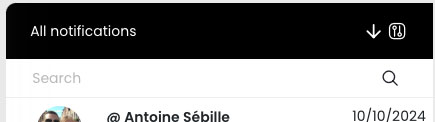
By clicking on the arrow icon at the top right of the left side, you will be able to sort the messages in your list in ascending or descending order according to the date of receipt. Practical for checking that conversations that are too old are waiting to be processed…
How do I filter posts and comments?
Filtering posts and comments is a great way to focus on specific interactions and streamline your moderation management. 😍
With Dailyfy, you can filter engagements based on dates, social profiles, engagement types, status, or even if a colleague is associated with a post. To do this, simply click on the Filter button (to the right of the arrow that allows you to sort). Then, select the chosen criteria so that your conversations are filtered accordingly.
This feature saves time to easily locate and respond to specific interactions. 🚀
What can we filter?
The status of a conversation
You will be able to filter by the status of a conversation. In Dailyfy, we have simplified this to 3 statuses:
- Unread
- Unsolved
- Resolute
Social networks
A little particularity of Dailyfy, you can filter social networks in Two places:
- From our profile bar (at the top of the window that we find on each page of your Dailyspace).
- From the filter bar of the module in the social media section.
Types of conversation
We assign a specific filter for each type of conversation. Depending on the social networks selected and connected, the types will vary.
We have 4 forms of conversation:
- Private message
- Organic Comments
- Ad Comments
- Reviews (Google only soon)
By date
Ideal for searching for conversations over a given period, in the date section you can filter conversations by a time period.
By Signing
Do you want to find a message in which you were assigned? Or even check that your colleague is also a collaborator in a conversation?
In the assignment section, you will be able to filter the messages according to the members of your team.
You will be able to easily view the messages assigned to you. This way, you can take control of your inbox without getting lost.
Important messages
When you assign a star to a conversation, it will be considered important and will always remain at the top of your list. You can choose to show only the so-called “Important” conversations.
This feature is perfect for tracking interactions that require follow-up or additional action. 🚀So, no more lost opportunities or forgotten commitments: just mark them with a star and follow them easily!
How do I search for conversations?
Use the search bar to quickly find specific posts and comments. Save time and stay organized by using the search bar for interactions based on keywords, users, messages, and more! With the search bar, you can easily locate and respond to specific interactions, making sure nothing slips through the cracks. ✨
How do I reply to a message?
To answer a conversation from Dailyfy, it’s very simple. To do this, simply follow these steps:
- Access the engagement feature (message icon) in the menu
- You will then be in the inbox view, where by default all pending and unresolved messages are displayed.
- Select a specific conversation by clicking on it.
- Then, all you have to do is compose your message from the “reply” section.
- When your reply is ready, you will need to click reply to validate the message.
- If you consider that you have finished processing the message then, you will have to click on the “conversation ended” icon at the top right.
What actions can I take from Dailyfy to moderate a conversation?
Depending on the type of post and the social network, we offer you several features so that you can easily moderate your networks.
Private messages
For private messages received on your Facebook page, you will be able to:
- Translate message
- Reply to message
Organic Comments
For organic comments, you’ll be able to:
- Like
- Hide
- Delete
- Answer in DM
- Reply to comment
- To translate
- View the comment on Facebook
Comments on an advertisement
For Darkposts comments, you will be able to:
- Like
- Hide
- Delete
- Answer in DM
- Reply to comment
- To translate
- View the comment on Facebook
Private messages
For private messages received on your Instagram business account, you will be able to:
- Translate message
- Like the post
- Reply to message
Organic Comments
For organic comments, you’ll be able to:
- Hide
- Delete
- Answer in DM
- Reply to comment
- To translate
- Go to the comment on Instagram
Comments on an advertisement
For Darkposts comments, you will be able to:
- Hide
- Delete
- Answer in DM
- Reply to comment
- To translate
- Go to the comment on Instagram
What are the features of the Dailyfy response tool?
From our Dailyfy answer tool, you will have access to the following features:
- Answering the conversation (the basics)
- Assign a team member to this conversation
- Interact and moderate your conversation according to the available actions (part above)
- Follow the processing process: Unread, Unresolved, Resolved
- Reply with emojis
- Reply with our pre-recorded messages to save time
- Respond with MagicDaily AI
- Answer in DM
- Add media (when possible)
- Add an internal note and mention a colleague
- Add an important bookmark to follow this conversation later more easily
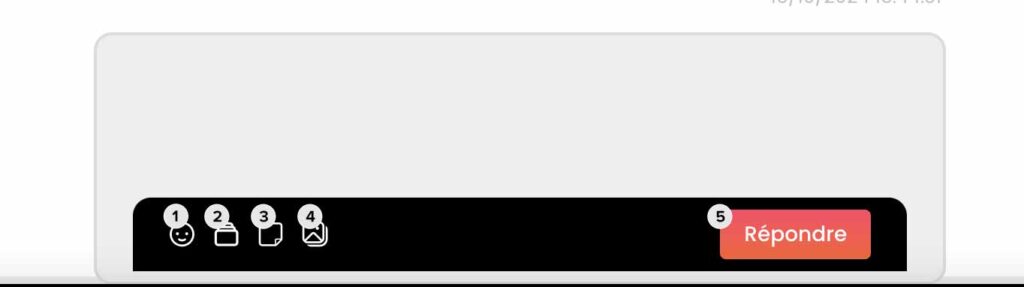
- 1: Add emojis
- 2: Manage pre-recorded messages
- 3: internal note and employee mention
- 4: Add Media
- 5: Button to reply
What are the steps to manage your moderation with Dailyfy?
On Dailyfy, the processing process is very simple.
- If you haven’t opened the conversation yet (not read) then you’ll see a small orange dot at the bottom right of the message list.
- When you click on the conversation then its status will change to “read”, it will be considered pending
- When you feel that you have processed the request, you will just have to click on the check icon (top right) to switch the conversation to resolve.

- 1 : to assign a colleague
- 2 : to assign an important status
- 3: To make the conversation read or unread
- 4: to put the conversation in resolved or not
- 5 to indicate the page and type of conversation
You will be able to change the status of the conversation at any time and go back to its status. To do this, simply click on a conversation, then on the check icon to go back to waiting or the letter icon to put the message back unread.