
Discover this incredible collaborative feature to manage the different conversations with your team.
Introduction to the internal note
The internal note is a powerful feature in the inbox of Dailyfy’s Engagement module. It allows you to add comments or notes about a specific interaction that are only visible to you and your team.
Here’s how this feature can help you:
✍️ You can easily keep track of the status of each interaction.
🤝 Share important information with your team members.
😄 Mentions a colleague in an internal memo to let them know about an update.
🔒 Remain discreet: the social media user does not see these notes.
✨ Improves collaboration and conversation tracking without disrupting the customer experience.
With Dailyfy’s internal notes, you optimize your interaction management while keeping communication fluid within your team!
How do you write an internal memo?
To write an internal note in Dailyfy, all you have to do is go to our moderation tool and click on a conversation.
In our conversation toolbar, you’ll need to identify the notepad icon (below). Clicking on it will change the color of the text field to yellow.
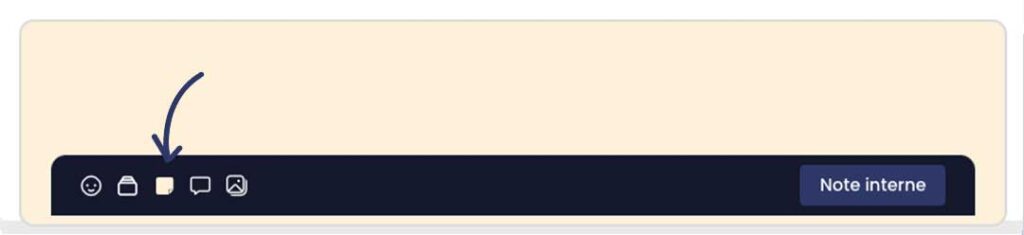
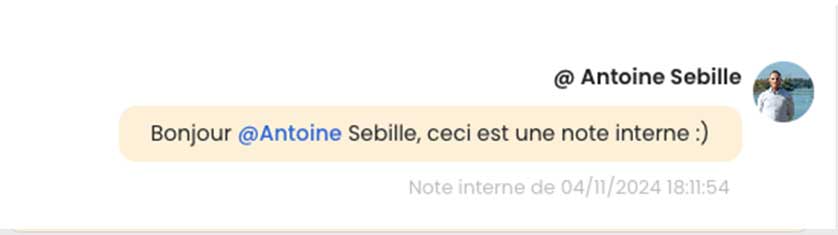
Add your remarks, comments and other important information relevant to the management of this conversation here. In the conversation, internal messages published will be colored yellow with a small internal note under the message.
How do I notify a colleague in an internal note?
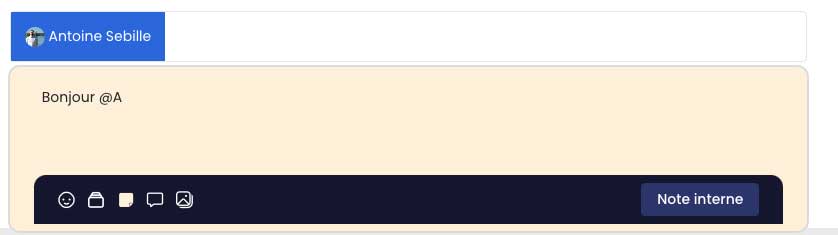
Tip: You can even mention a member of your team by using the “@” symbol followed by their name. This way, he will be notified of your rating!
With this simple and effective feature, you can easily share important information with your team, while keeping track of every customer interaction. This is the key to smooth collaboration and optimal management of your customer relationship!