
The pre-recorded messages feature will save you a lot of time in your moderation. In customer service, most of the questions have already been answered in another conversation, so you can answer them with just a few clicks thanks to this feature.
Introduction to the tool
Response templates are pre-written messages that you can use to quickly respond to frequently asked questions or comments from your customers on social media. This feature is especially useful for businesses that receive a large number of social media interactions. Here’s what it does for you:
⏰ Considerable time saving.
🙌 Consistency in your answers is assured.
🚀 Improved efficiency by allowing multiple members of your team to use the same pre-written answers.
✨ Freeing up time and resources for other important tasks.
With Dailyfy’s response templates, you optimize your social media management while maintaining quality communication with your customers!
How do I create a response template?
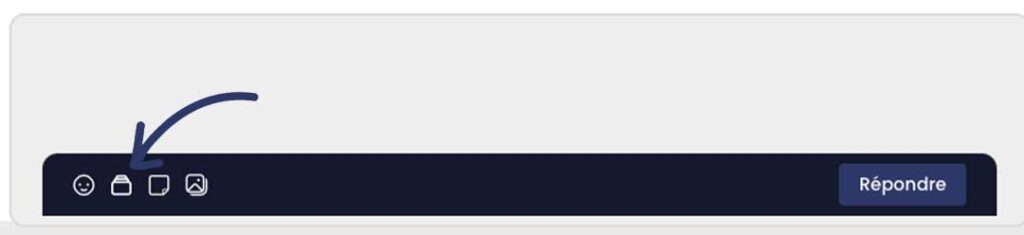
To create a reply template, simply go to a conversation in our moderation tool, then click on the pre-recorded messages icon (below).
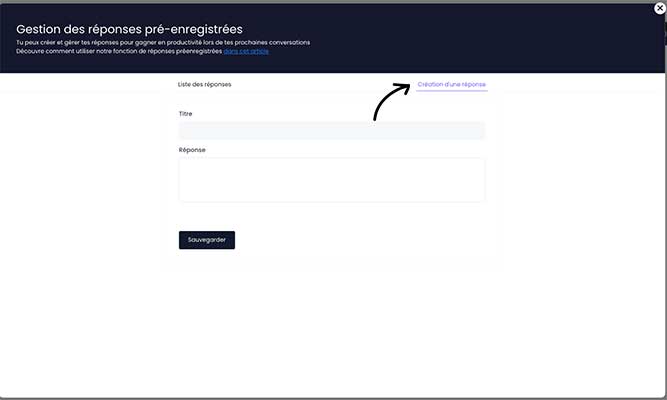
Then, in the window that just opened, you have to go to the “creating a response” section. You will then have to add a title by adding keywords to make your search easier, and then the message of your reply. Then you need to save.
Little tip: You can add dynamic variables in your message that will be automatically replaced in the insertion. For example, the variable {mention} will display the mention of the user you are replying to.
How do I use a pre-recorded reply to reply to a conversation?
To reply to a conversation with our pre-recorded message template feature, you need to click on a conversation and then click on the feature icon in the moderation tool (below).
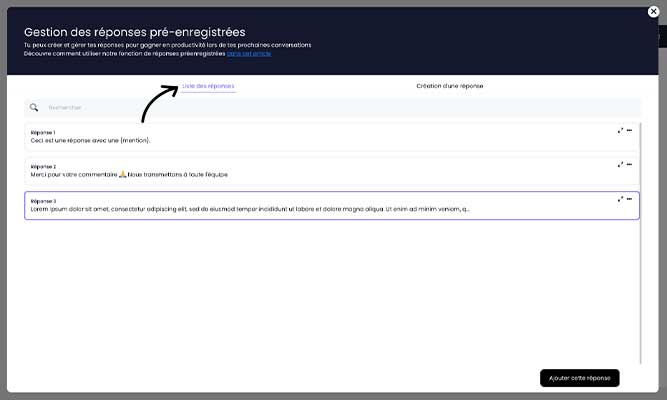
Then, in the window that just opened, you have to go to the “Answer List” section. Here you can find all the answers that have already been saved. You can search with a keyword to find your model.
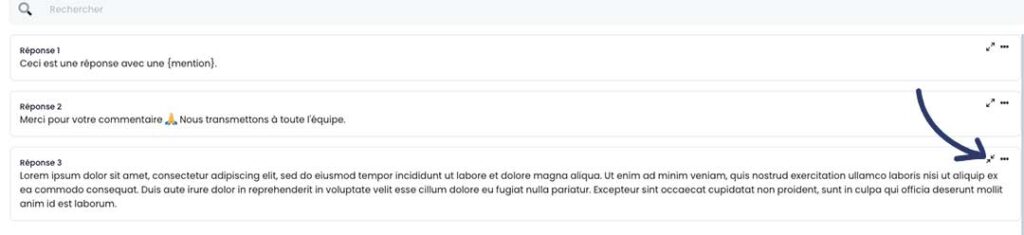
If the message is too long, you can expand it by clicking on the arrow icon in the top right corner of the message.
Once you have found your message, simply select it and then click on the button in the bottom right corner: “Add this reply”. If your message contains a dynamic {mention}variable, then it will be replaced by the contact’s first and last name. Example below:
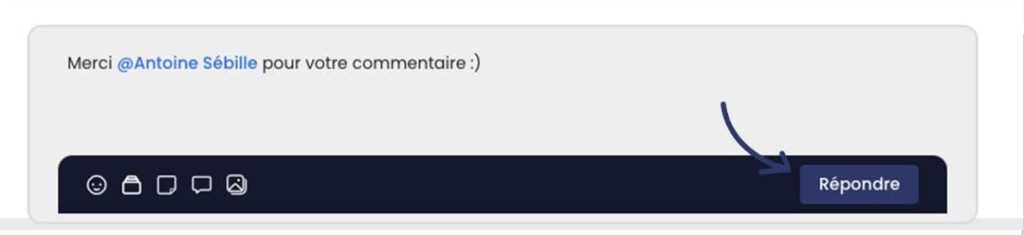
All you have to do is read the message again and send it to the contact by clicking on the “Reply” button.
Be careful on Facebook, depending on the permissions and confidentiality, the mention may not be dynamic, it will then be replaced by the first and last name of the person. This person will be notified but not dynamically mentioned on the networks.